
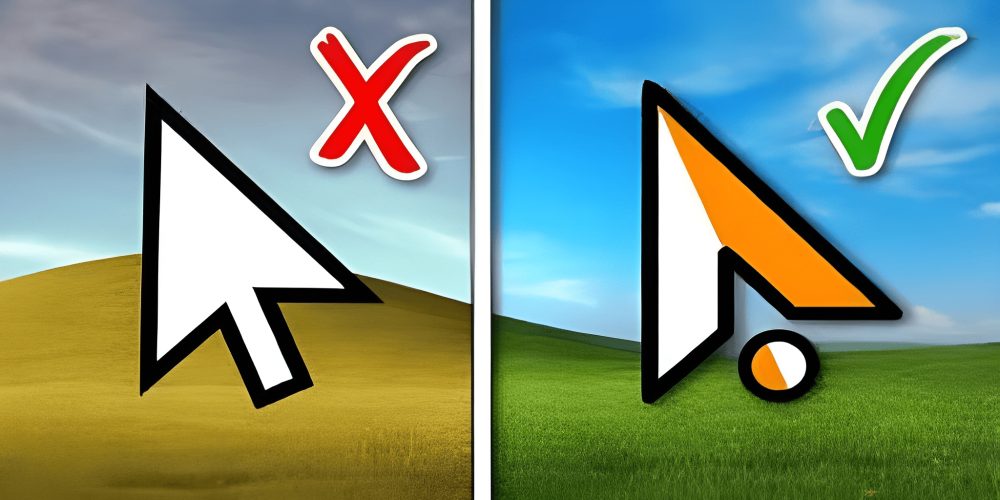
The term cursor is one of the most fundamental yet often overlooked components of modern computing. Every time you interact with a computer, smartphone, or any digital device, the cursor serves as your primary point of interaction. This guide explores the cursor in depth, covering its evolution, types, functions, technical implementations, and common questions. The cursor has transformed from a simple blinking line to sophisticated visual indicators that support complex user interactions. Understanding the cursor is essential for anyone who uses technology regularly, from casual users to professional developers and designers. This comprehensive resource will help you master every aspect of the cursor.
What Exactly Is a Cursor
A cursor is a visual indicator on a display screen that shows the current position where user input will take effect. The cursor responds to input devices such as mice, touchpads, keyboards, or touch screens. In graphical user interfaces, the cursor often appears as an arrow, hand, or text selection bar. The cursor provides real-time feedback about what actions are possible at any given moment. Without the cursor, users would have no clear way to know where their next typed character would appear or what element would respond to a click. The cursor bridges the gap between human intention and machine execution. Every operating system includes cursor management as a core functionality. The cursor changes shape based on context, such as becoming a resize arrow when hovering over window edges. This contextual behavior makes the cursor an intelligent assistant rather than just a passive marker.
Historical Evolution of the Cursor
The cursor predates graphical interfaces by several decades. In early command-line systems, the cursor appeared as a blinking underscore or block. This text cursor indicated where the next typed command would appear. The invention of the computer mouse in 1964 by Douglas Engelbart introduced the concept of a graphical cursor. The Xerox Alto in 1973 was one of the first computers to use a graphical cursor controlled by a mouse. Apple popularized the graphical cursor with the Macintosh in 1984. Microsoft Windows adopted similar cursor functionality shortly after. Over time, the cursor gained new capabilities such as drag-and-drop, context menus, and animated effects. Modern cursors support high-resolution displays with smooth anti-aliasing. The cursor has also adapted to touch interfaces where it appears only when needed, such as when a keyboard or stylus is detected. Voice-controlled systems sometimes use a cursor to confirm recognized commands. The evolution of the cursor reflects the broader shift from text-based to intuitive graphical computing.
Types of Cursors and Their Functions
Different cursor shapes communicate different possible actions to the user. The arrow cursor is the default pointer used for selecting and activating interface elements. The text cursor, often called an I-beam, appears when hovering over editable text fields. This cursor shows exactly where characters will appear when typed. The hand cursor typically indicates a clickable link or button. The crosshair cursor appears in graphics software for precise positioning. The resize cursors include arrows pointing up, down, left, right, or diagonally to indicate edge or corner dragging. The move cursor looks like crossed arrows and indicates that an element can be dragged to a new position. The wait cursor, often an hourglass or spinning wheel, signals that the system is processing and cannot accept input. The help cursor adds a question mark to indicate that clicking will provide contextual assistance. The precision cursor appears as a small dot or target for fine control in design applications. The no-drop cursor shows a circle with a diagonal line to indicate that an action is not allowed. Each cursor type follows platform conventions to ensure consistency across applications.
Technical Implementation of Cursors
At the hardware level, the cursor position is tracked by input devices and reported to the operating system at high frequency. Modern mice report position changes hundreds of times per second. The operating system receives these coordinates and updates the cursor position on screen. The graphics subsystem redraws the cursor at the new location during the vertical blanking interval to avoid tearing. Cursor rendering can happen in hardware or software. Hardware cursors are drawn by the graphics card independently of the main display contents, resulting in smoother movement with lower latency. Software cursors are drawn by the operating system as part of the frame buffer, which can cause slight lag but allows for more complex cursor designs. Custom cursor shapes are loaded as bitmap images or vector graphics. Operating systems provide application programming interfaces for changing cursor appearance programmatically. Accessibility features allow cursor size and color customization for users with visual impairments. High refresh rate displays benefit from cursor position updates that match the display’s refresh cycle.
Cursor in Different Operating Systems
Windows operating system uses a default arrow cursor with a shadow effect. Windows supports animated cursors with the .ani file format. Users can change cursor schemes entirely through the personalization settings. The Windows cursor includes precise hot spot definition where clicking actually registers. macOS features a high-resolution cursor that automatically enlarges when shaken for visibility. The macOS cursor changes to a beach ball during application unresponsiveness. Linux desktop environments like GNOME and KDE offer extensive cursor customization including third-party themes. Chrome OS uses a cursor similar to Linux but optimized for touchpad gestures. Mobile operating systems like iOS and Android hide the cursor most of the time but show a text cursor when editing fields. Each operating system handles cursor acceleration differently, affecting how far the cursor moves relative to physical mouse movement. Cursor trails were historically used on LCD screens to improve visibility but are less common today.
Cursor Behavior in Web Browsers
Web browsers interpret cursor CSS properties to change cursor appearance based on element styling. Developers can set cursor: pointer to indicate clickable elements. The cursor: text property creates the I-beam over text areas. Cursor: move suggests draggable elements. Cursor: not-allowed shows the forbidden symbol. Custom cursors can be loaded using cursor: url with a fallback value. JavaScript can track cursor position for effects like custom tooltips or parallax scrolling. The cursor leaves the browser window triggers mouseleave events. Cross-origin iframes have limitations on tracking cursor movement for security reasons. Touch devices ignore cursor CSS properties and rely on tap interactions instead. The cursor indicates interactive elements to users, improving usability and reducing confusion. Browser developer tools can simulate cursor hover states for testing responsive designs. Cursor tracking must respect user privacy, with browsers limiting how frequently cursor position can be polled.
Accessibility and the Cursor
For users with motor impairments, cursor control presents significant challenges. Operating systems include cursor adjustment features such as increased size, high contrast colors, and slower acceleration. Sticky keys and click lock help users who struggle with holding buttons while moving the cursor. Eye tracking systems simulate cursor movement based on gaze direction. Switch access allows cursor control using single buttons or breath controls. Voice commands can move the cursor to specific screen regions. The cursor provides essential feedback for screen magnifier users who cannot see the entire interface at once. Cursor trails and locator animations help users find the cursor on large or multiple displays. The cursor can be configured to snap to default buttons in dialog boxes, reducing fine movement requirements. Accessibility APIs expose cursor position to assistive technologies like screen readers. Developers must ensure that cursor-based interactions have keyboard equivalents for users who cannot use pointing devices.
Cursor in Programming and Development
Software developers interact with the cursor through multiple programming interfaces. In database management, a cursor is a control structure that enables traversal over database records. Database cursors allow row-by-row processing of query results. SQL cursors can be scrollable, allowing forward and backward movement. Database cursors consume server resources and should be closed after use. In text editing, a cursor position is tracked by the caret in code editors. Integrated development environments show multiple cursors for simultaneous editing. Command line interfaces use a cursor to show where typed commands will appear. Graphics programming requires custom cursor rendering when building games or creative applications. User interface frameworks like React handle cursor changes through component state. Desktop application frameworks like Qt provide cross-platform cursor management. Game development often hides the system cursor and draws a custom crosshair or targeting reticle instead.
Common Problems Related to Cursor
Cursor disappearance is a frequent issue that can be caused by driver conflicts, graphics settings, or application bugs. Pressing Ctrl or moving the mouse usually restores a hidden cursor. Cursor lag occurs when system resources are overloaded, causing delays between physical mouse movement and screen update. Reducing background processes and updating drivers often resolves cursor lag. Cursor jumps erratically when the mouse sensor is dirty or when interference affects wireless signals. Cursor freezes completely may indicate a crashed system or disconnected input device. Cursor acceleration makes the cursor move faster with faster mouse movement, which some users disable for gaming or design work. Cursor ghosting shows duplicate cursor images when screen refresh rates are mismatched. Cursor drift happens when input devices send signals without physical movement, requiring recalibration or replacement. Cursor size resets can occur after system updates that override user preferences. Cursor color inversion is an accessibility feature that ensures visibility against any background.
Advanced Cursor Techniques
Professional users employ advanced cursor techniques to improve productivity. Mouse gestures use cursor movement patterns to trigger commands without clicking menus. Circular motions might refresh a page while zigzag patterns could close applications. Cursor snapping automatically moves the cursor to common targets like dialog box buttons. Cursor wrapping moves the cursor to the opposite edge of the screen when reaching one edge, useful for multi-monitor setups. Cursor trails with adjustable length help track movement on high-resolution displays. Cursor shadow effects provide depth perception against complex backgrounds. Cursor animation can include breathing effects or subtle pulsing to draw attention. Cursor hotspot editing allows designers to precisely define where clicking registers on custom cursors. Cursor layering displays multiple cursor indicators when using collaborative editing software. Cursor locking confines the cursor to a specific window, essential for gaming or simulation applications.
Future of Cursor Technology
Emerging technologies are reshaping how the cursor functions. Virtual reality systems use gaze-based cursors controlled by eye tracking and hand gestures. Augmented reality overlays digital cursors onto physical environments. Neural interfaces may eventually allow cursor control through thought alone. Predictive cursors anticipate user intent and move toward likely targets automatically. Adaptive cursors enlarge when hovering over small targets to improve precision. Cross-device cursors can move seamlessly from computer to tablet to phone within the same ecosystem. Gesture cursors respond to hand movements in front of sensors without physical contact. Pressure-sensitive cursors change behavior based on how hard the user presses the input device. Haptic feedback cursors vibrate differently when passing over various interface elements. Machine learning could customize cursor acceleration curves for individual users based on their movement patterns. Voice-activated cursor positioning allows users to say a button name and have the cursor jump there instantly.
Frequently Asked Questions About Cursor
What is the difference between a cursor and a pointer
The terms cursor and pointer are often used interchangeably, but subtle differences exist. A cursor typically refers to the text insertion indicator that blinks in editable areas. A pointer usually describes the arrow or hand that selects and activates interface elements. However, most operating systems and documentation use cursor as the general term for any on-screen position indicator. The pointer specifically indicates a clickable target area. In practice, you can use either term without confusion.
Why does my cursor sometimes change to a spinning wheel or hourglass
The spinning wheel or hourglass cursor indicates that the system or application is busy processing a task. During this time, the cursor may not respond to clicks or movements as expected. This cursor appears during file operations, program launches, or complex calculations. If the busy cursor persists for more than a few seconds, the application may have frozen. You can usually wait for the operation to complete, but forced termination might be necessary if the cursor never returns to normal.
How do I change the size and color of my cursor
Windows users can navigate to Settings, then Ease of Access, then Cursor and Pointer to adjust size and color. macOS users go to System Preferences, then Accessibility, then Display, then Pointer to customize cursor appearance. Linux distributions vary but generally offer cursor customization through appearance or theme settings. Changing cursor size improves visibility for users with visual impairments. Changing cursor color helps contrast against certain backgrounds.
Can I use custom cursor images on my computer
Yes, most operating systems allow custom cursor images. Windows supports .cur and .ani file formats for static and animated cursors. macOS allows custom cursor replacement through third-party utilities. Linux desktop environments often support cursor themes downloaded from community repositories. Custom cursors must be properly sized and have correctly defined hot spots. Using custom cursors can personalize your computing experience but may reduce accessibility if poorly designed.
What causes cursor drift and how do I fix it
Cursor drift occurs when the cursor moves on screen without any physical input device movement. This problem usually stems from a faulty mouse sensor, dirty optical lens, or wireless interference. Clean the mouse sensor with compressed air or a soft cloth. Replace batteries in wireless devices. Move wireless receivers closer to the mouse and away from other electronic devices. If drift continues, test a different mouse to determine if the issue is hardware related.
How does cursor acceleration affect my experience
Cursor acceleration makes the cursor move farther when you move the mouse faster. This allows both precise slow movements and rapid cross-screen movements without changing sensitivity settings. Some users disable acceleration for consistency in design work or competitive gaming. Most operating systems let you adjust or disable cursor acceleration in mouse settings. Try both settings to see which feels more natural for your typical tasks.
Why does my cursor disappear when typing on a laptop
Many laptops hide the cursor while typing to prevent accidental clicks from palms or fingers. This feature reduces interruptions during text entry. Moving the mouse or touching the touchpad usually restores the cursor. You can disable this behavior in touchpad settings if it bothers you. Some external keyboards also trigger cursor hiding on laptops. The cursor returns automatically when you stop typing for a moment.
What is a database cursor and how is it different from a screen cursor
A database cursor is completely unrelated to the visual cursor on your screen. Database cursors are programming constructs that allow row-by-row processing of query results. They help developers iterate through database records sequentially. Screen cursors are visual indicators for user interaction. The same word describes different concepts in computing. Context makes the meaning clear, as database cursors are never visible to end users.
How can I locate my cursor on a large or multiple monitor setup
Press the Ctrl key on Windows to activate cursor locator effects. Shake the mouse on macOS to temporarily enlarge the cursor. Some Linux desktop environments have similar locator features. Third-party utilities like PowerToys for Windows add additional cursor highlighting. Changing cursor size or color also improves visibility. Cursor trails can help track movement across large displays.
Does cursor position affect battery life on laptops
Cursor movement has minimal impact on laptop battery life. The graphics hardware constantly refreshes the entire display regardless of cursor movement. However, some power saving settings reduce cursor update rates to save energy. Bluetooth mice consume more battery than wired mice due to wireless transmission. The screen cursor itself does not significantly affect battery life compared to display brightness or background processes.
What is the ideal cursor speed setting for productivity
No single cursor speed works for everyone. Start with default settings and adjust gradually. Faster cursor speeds reduce hand movement but reduce precision. Slower speeds increase accuracy but require more physical effort. Most professionals set cursor speed so they can move from one corner of the screen to the opposite corner without lifting the mouse. Designers and gamers often prefer slower speeds for pixel precision. General users typically prefer moderate speeds that balance speed and control.
Why does my cursor jump when I connect an external monitor
Different screen resolutions can cause cursor jump when moving between displays. The operating system scales cursor movement based on each monitor’s resolution and position in the display arrangement. Align monitors properly in display settings to minimize jumping. Setting both monitors to the same resolution eliminates jumping entirely. Cursor jump is normal behavior and indicates that the system is correctly mapping coordinates between displays.
Can viruses or malware affect my cursor
Yes, certain types of malware specifically target cursor behavior. Ransomware might lock cursor movement entirely. Remote access trojans can move the cursor to simulate user activity. Adware might change cursor appearance to trick clicks. If your cursor behaves erratically without hardware issues, run a security scan. Legitimate software updates also occasionally change cursor behavior, so check recent installations first.
How do I enable or disable cursor shadow effects
Windows allows cursor shadow toggling through advanced system settings under performance options. macOS includes limited cursor shadow options. Linux cursor shadows depend on the desktop environment and compositor. Cursor shadows improve visibility on cluttered backgrounds but add minimal rendering overhead. Disabling shadows slightly improves performance on very old hardware. Most users keep cursor shadows enabled by default.
What is cursor smoothing and should I use it
Cursor smoothing averages multiple cursor position samples to reduce jitter. This feature makes cursor movement appear smoother but adds slight input lag. Gamers and graphic designers often disable smoothing for more responsive control. General users benefit from smoothing when using touchpads or low-quality mice. Smoothing is typically enabled by default on laptops and disabled on high-performance desktops. Experiment to see which setting feels better for your typical activities.
Conclusion
The cursor remains an indispensable component of human-computer interaction despite often being taken for granted. From its humble beginnings as a blinking text caret to modern adaptive pointers with haptic feedback, the cursor continues to evolve alongside technology. Understanding cursor behavior, customization options, and troubleshooting methods empowers users to work more efficiently. Whether you are a casual user wondering about cursor disappearance or a developer implementing custom cursor effects, this knowledge enhances your digital experience. The cursor will likely persist as a primary interaction method for years to come, even as new input modalities emerge. Mastery of cursor-related features and settings represents a small but meaningful step toward computing proficiency.
Leave A Comment
0 Comment